Podcasting
·
Oct 15, 2026
Record Guests Far from Seattle Without Losing Sound Quality
Arif Gursel
Founder

Our example creator, Tasha, has a problem most new podcasters run into around episode three. A seventh grader in her class asked, "Why do whales sing, and do they sing the same song every year?" It is a perfect question for her show, the one where every episode answers a real question a kid asked. The best person to answer it, in this illustrative example, is a marine researcher who lives two time zones away and has exactly one free hour next Thursday. Tasha cannot fly her to Seattle. She can, however, record her so well that a parent listening in the car would never guess the two of them were hundreds of miles apart.
In Part 11 you learned how to run a recording session when everyone shares a room. This part covers the session where somebody does not. Remote and hybrid recording is now a normal part of podcasting, and done carefully it opens your guest list to the whole world. Done carelessly, it gives you robotic audio, frozen video and a guest who sounds like she is calling from inside a tin can. Here is how to get the first result and avoid the second.
Why Remote Audio Goes Wrong (and What "Broadcast Quality" Really Means)
When you talk to someone on a regular video call, the software is optimizing for one thing: keeping the conversation alive in real time. To do that, it compresses audio and video aggressively, drops frames when the connection wobbles, applies noise suppression that can make voices sound watery, and sometimes cuts the first syllable of a sentence. That is fine for a meeting. It is rough for a podcast that people will listen to on good headphones.
"Broadcast quality" for a remote guest usually means three things:
Uncompressed or lightly compressed audio, typically recorded at 48 kHz (the common standard when audio will be paired with video) or 44.1 kHz.
Each person on a separate track, so your editor can fix one voice without affecting the others.
Video recorded at the source in high resolution, instead of the blurry, variable stream you see on the call.
The key insight is simple. The live call is just how you talk to each other. The recording should happen somewhere else: ideally, on each participant's own device.
Three Ways to Record a Remote Guest
You have three main options, and they get better in roughly this order.
Option 1: Record the video call
Tools like Zoom can record a meeting, and some can save a separate audio file for each participant if you turn that setting on before the call (availability and location of the setting vary by plan and version, so check your account). This is the easiest method and the lowest quality, because you are recording the compressed call stream. Use it as a backup, not your main recording.
Option 2: The double-ender with a remote recording platform
A "double-ender" means each person records themselves locally while you talk over the call. Older podcasters did this by hand: both people hit record in separate apps, then emailed files afterward. Today, browser-based platforms such as Riverside, Zencastr and SquadCast (which is now part of Descript) automate it. Each participant's browser records their own microphone and camera at full quality and uploads the files progressively during the session. If the internet hiccups mid-sentence, the call might glitch, but the local recording usually does not.
Features, pricing, maximum resolution and upload behavior change often across these platforms, so compare current plans before committing. For most beginners, a double-ender platform is the right default.
Option 3: Hybrid, in a studio with a remote guest
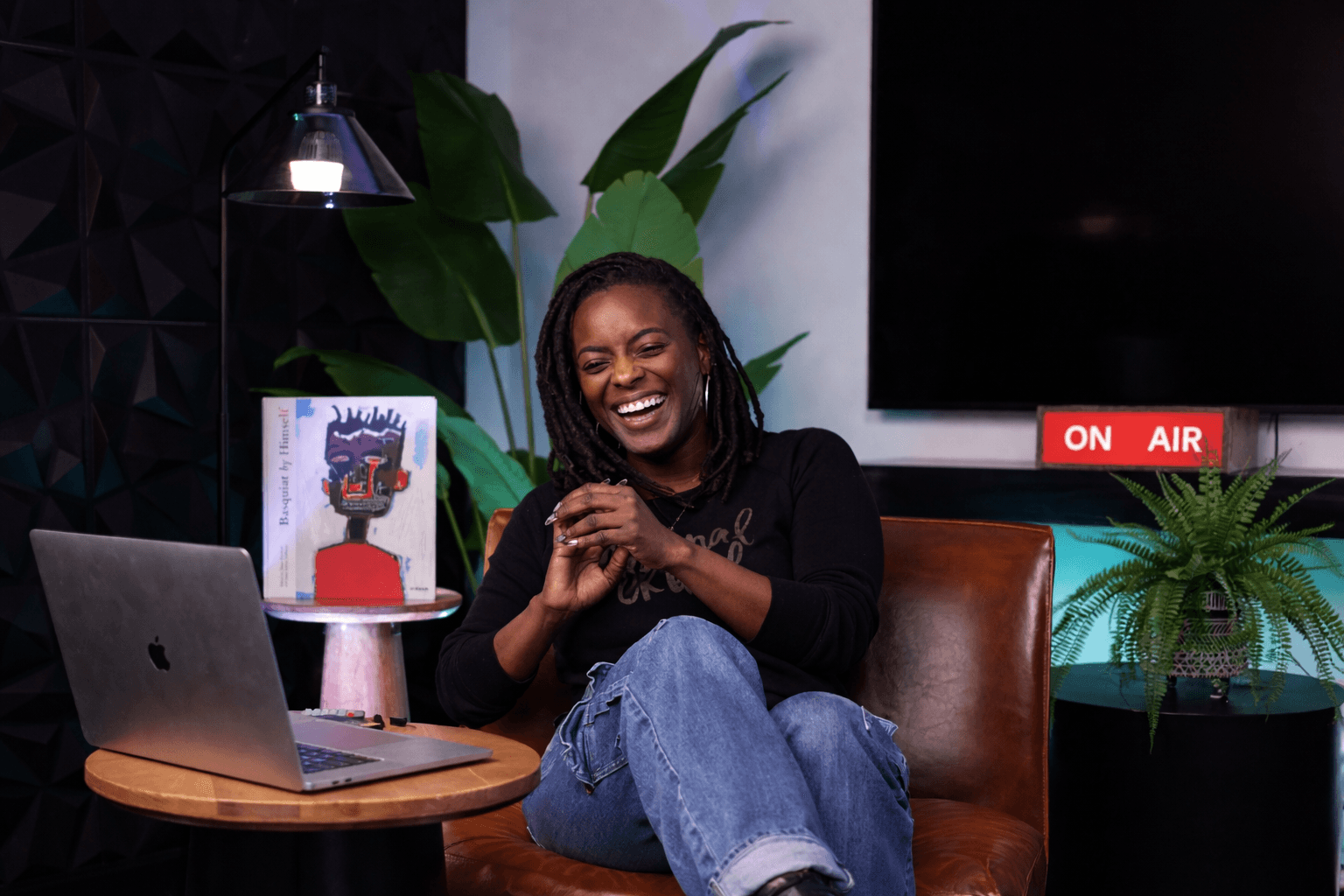
This is where some people sit together in a professional room and one or more guests join remotely. The in-room voices get studio microphones and cameras, while the remote guest is captured through a double-ender platform. It is the format Tasha chooses: she and her co-host for this episode (an illustrative parent volunteer named Marcus, who brings the "I have no idea either" energy parents relate to) record in person at The Union, and the researcher joins from home.
Hybrid gives you the best of both worlds, but it adds routing complexity, which we will get to shortly.
The Connection: Your Side and Theirs
Every remote recording depends on two internet connections, and the weaker one sets the ceiling. Upload speed matters more than download speed here, because a double-ender is constantly sending high-quality files to the cloud while also sending your live video to the other person.
Requirements vary by platform and resolution, so check each tool's current recommendations. As a general rule:
Wired beats Wi-Fi. An ethernet cable eliminates most mid-call dropouts.
Close other apps and tabs. Cloud backups, game downloads and streaming video in another room all compete for bandwidth.
Ask household members to pause streaming during the recording window if your guest is on home internet.
Run a speed test an hour before, from the exact spot the guest will sit.
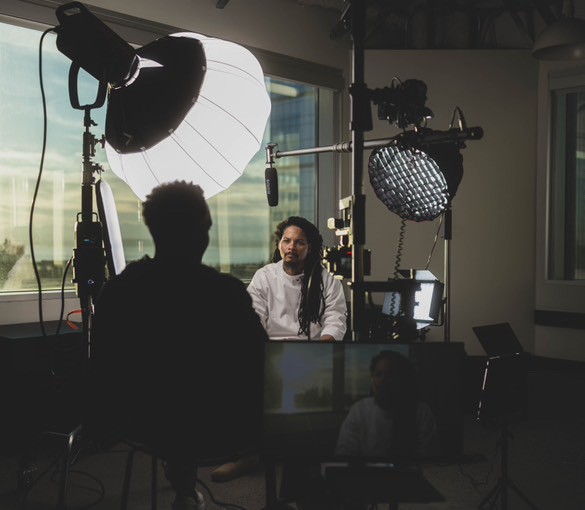
Your own side is the part you control completely, and this is one of the clearest reasons creators record remote and hybrid sessions in a production studio. The Union's media lab runs on dedicated fiber internet, fast in both directions, so the host's end of the call is not the weak link. That symmetry matters: the same connection that carries a smooth live call can also move large video files quickly. As founder Arif Gursel points out on the studio tour, you can review 4K footage while you are still on set, which means you can confirm a remote take looks right before your guest logs off. The Union's dedicated fiber and integrated Blackmagic Cloud Storage were built for exactly this kind of real-time collaboration, rapid file transfer and livestreaming.
Tasha's home Wi-Fi in Rainier Valley is fine for grading papers. It is not something she wants to bet a once-a-year guest on. Booking studio time removes one of the two connections from her list of worries.
Get the Guest's Side Right: A Five-Minute Kit
Your guest is not a podcaster, and you should not expect them to become one. Your job is to make their setup "good enough" with as little effort as possible. Send a short, friendly prep email at least three days ahead.
Microphone
Earbuds with a built-in mic are the minimum. A USB dynamic microphone is a big step up and costs far less than most people assume; dynamic mics pick up less room echo than condenser mics, which helps in untreated home offices. Some podcasters mail a mic to important guests and ask them to keep it as a thank-you gift. If the guest is using a laptop's built-in microphone, ask them to sit close to the laptop in the quietest, softest room they have.
Headphones
This one is non-negotiable. Without headphones, your voice comes out of the guest's speakers, into their microphone, and back onto their track as echo. Any wired earbuds will do. Wired is safer than Bluetooth, which can add delay and sometimes switches the computer to a lower-quality microphone mode.
Room and camera
Choose a room with soft surfaces: a bedroom with a bed and curtains often sounds better than a bare home office.
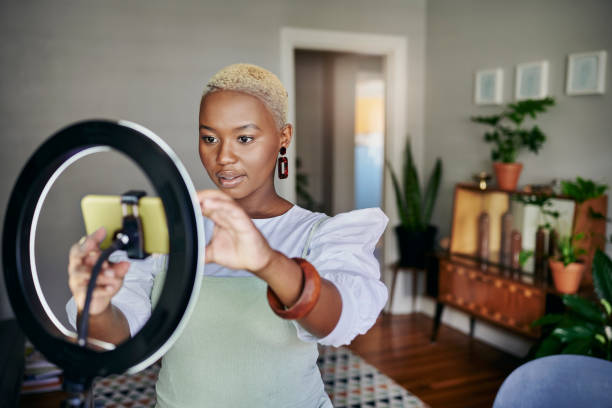
Face a window or a lamp so light falls on the face; avoid a bright window behind them.
Place the camera at eye level (a stack of books under a laptop works).
Turn off fans, air purifiers and notification sounds.
Browser and device
Most double-ender platforms work best in a specific browser (often Chrome) on a laptop or desktop. Phones can work, but they may pause the recording if the screen locks or a call comes in. Ask the guest to plug in their charger, since recording and uploading drains batteries fast.
Tasha writes her guest email in the same voice as her show: warm, short and a little playful. She includes a three-line "what you need" list, the recording link and her phone number in case anything goes sideways.
Hybrid Sessions: When Some People Are in the Room
Hybrid recording introduces a few technical traps that don't exist when everyone is remote.
The echo loop. The remote guest needs to hear the in-studio hosts, but they should not hear their own voice coming back to them, delayed. Audio engineers solve this with a setup called a "mix-minus": a feed that sends the remote guest everything except their own voice. This is engineering work, and it's exactly the kind of thing a proper recording and engineering setup, plus someone who knows it, handles quietly in the background. At The Union, the production team can walk you through how the remote feed is routed in the room you book.
Seeing each other. Conversations flow better when hosts can see the remote guest's face. Plan where that view will sit so your in-room eyelines feel natural on camera; the production team can help you set this up.
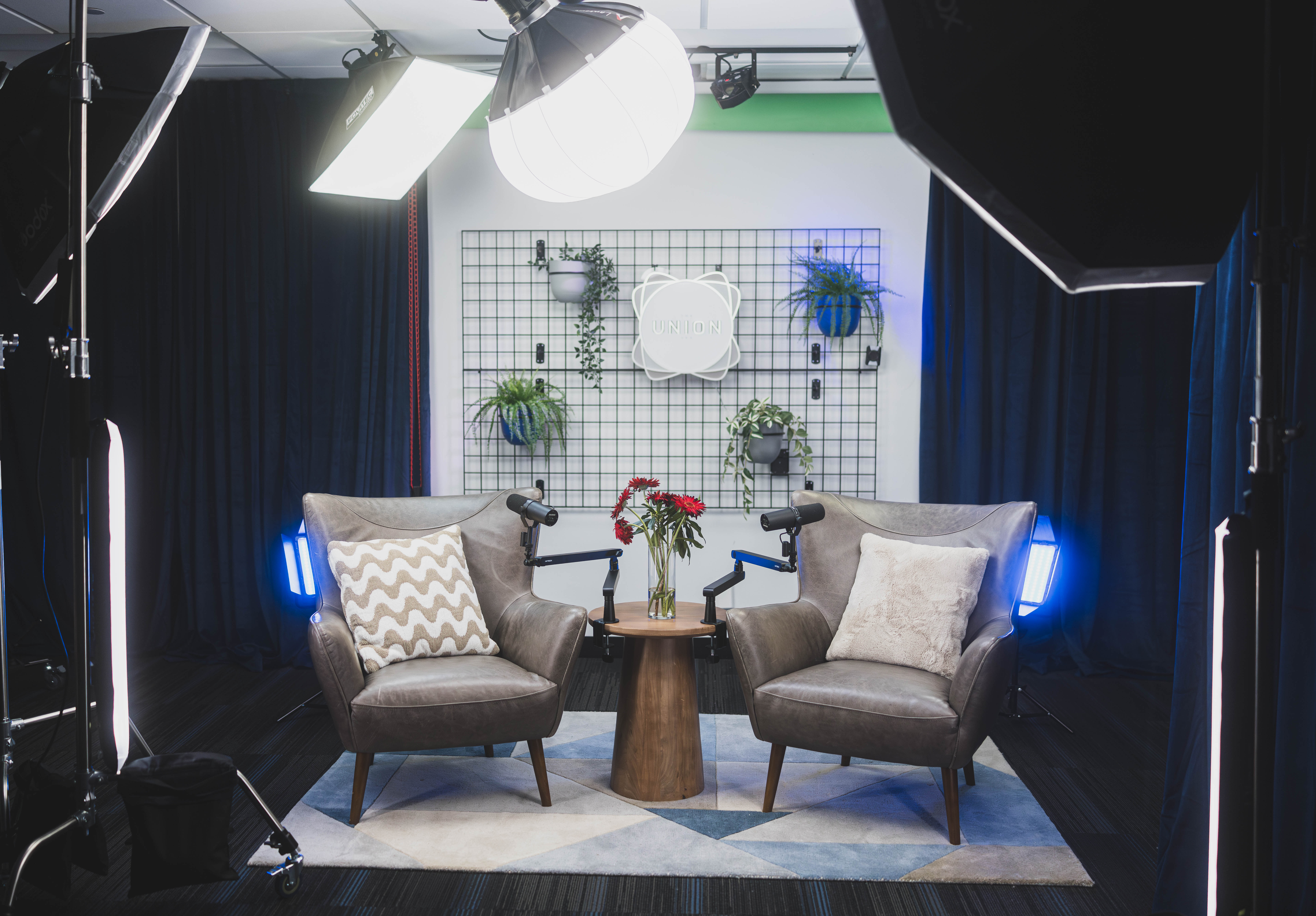
Choosing the set. Pick a set that matches the tone of your show and the number of people physically present. The Blue Pill studio includes sets such as The Cove and The Grid, and the Red Pill studio, built for larger setups and visual storytelling, includes sets such as Talk Show and QT's Corner. You can browse the spaces before you book, and The Union's modular sets and color backdrops can switch from a talking-head setup to a panel without a long reset.
Keeping notes in view. When you are juggling a remote guest, a co-host and a run-of-show, it helps to keep host notes on a teleprompter screen instead of a phone in your lap. The Union's studio includes one.
The Pre-Call Tech Check
Schedule the guest 15 minutes before you actually plan to start. Use that time for this checklist, in order:
Confirm headphones are on and that the guest hears you clearly.
Confirm the right microphone is selected in the platform's settings (computers love to default to the built-in mic).
Check levels. Ask the guest to talk at the volume they will use in conversation. You want their peaks landing roughly between -12 and -6 dBFS, with no red clipping.
Disable noise suppression and auto gain on the platform if it offers that option and the room is quiet, since these can make voices sound processed. Leave them on if the room is noisy.
Check the frame: eye-level camera, face lit, nothing distracting behind them.
Silence notifications on every device, including phones in pockets.
Start a backup recording on the host side (the call recording or the studio's own capture).
Ask the guest to start a phone voice memo next to them as a last-resort audio backup.
Do a sync clap. Everyone claps once, on camera, so the editor can line up tracks later.
Record 30 seconds of test conversation and play it back if the platform allows it.
This is also where working with a producer saves real stress. The Union's producers test remote links before a session as part of setting the room, so by the time you sit down, the connection has already been tried. If you are a nervous first-time host, handing off the tech check lets you spend those 15 minutes warming up your guest instead of troubleshooting their microphone.
During the Recording: Protecting the Take
Once you are rolling, a few habits make the difference between a clean episode and a frustrating edit.
Leave a beat before responding. Remote calls have small delays. If you jump in instantly, you will talk over each other, and crosstalk is hard to fix. A half-second pause also gives your editor clean edit points.
Watch the upload indicator. Most double-ender platforms show whether each participant's files are uploading. If someone's falls far behind, their connection may be struggling.
Re-ask instead of pushing through. If the guest's audio cuts out during a key answer, say so kindly and ask them to repeat it. Their local recording may be fine, but you can't confirm that until afterward.
Notice video freezes on the live feed and don't panic. A frozen call image usually does not mean the local recording froze.
Keep a timestamp log. Jot the time of great moments and problems. Your editor will thank you.
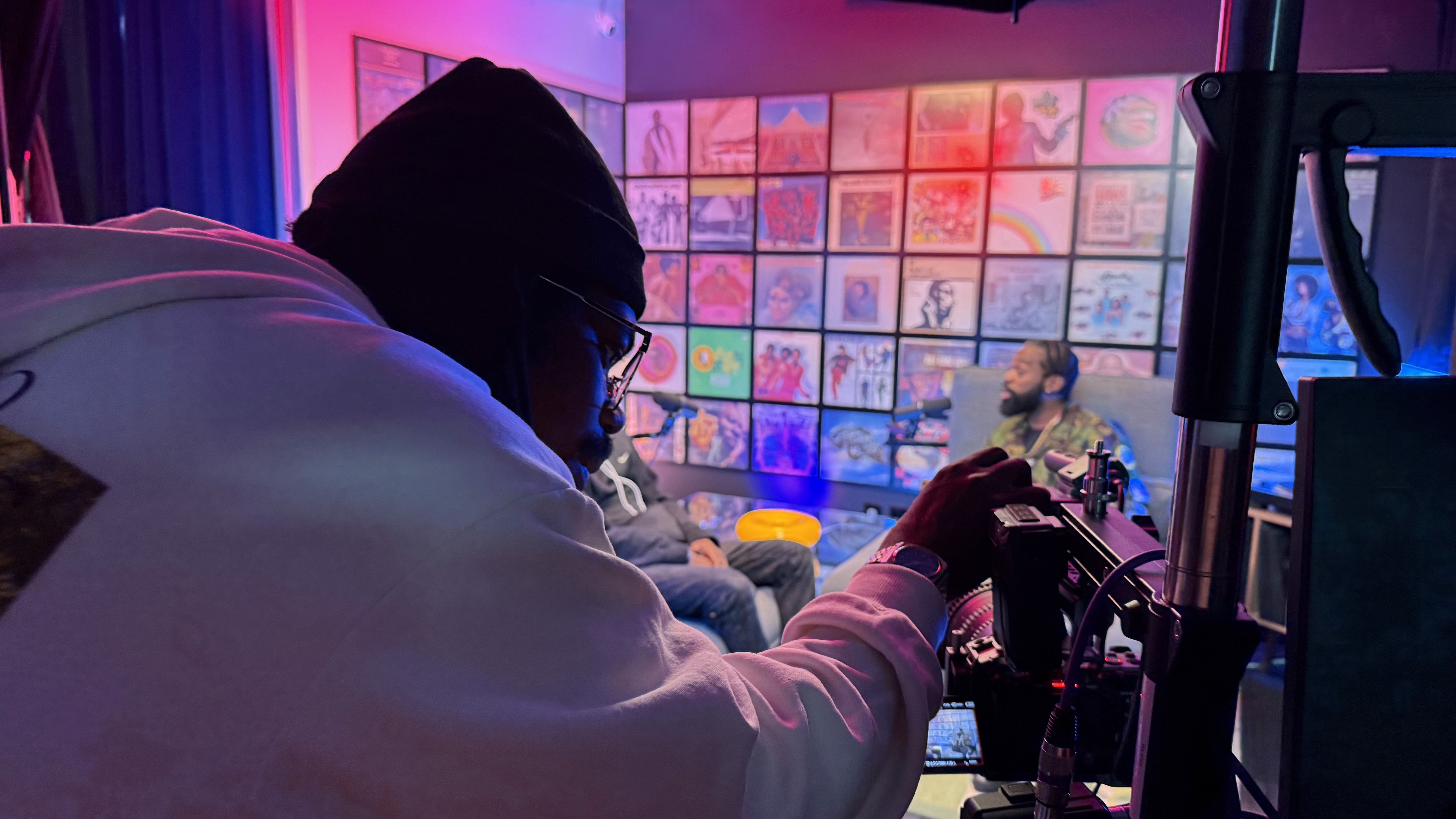
At The Union, producers monitor pacing and clarity during the session while capturing audio and video, on-site or remote. Having a second set of ears catch a buzzing microphone in minute four beats discovering it during the edit.
Tasha's researcher answers the whale question beautifully: yes, male humpback whales in a population tend to sing a shared song, and that song gradually changes over time, with researchers documenting new versions spreading between populations. Midway through, the guest's dog barks. Tasha laughs, lets it go and asks her to restate the last sentence. It takes ten seconds.
After the Call: Uploads, Backups and Handoff
The most common way to lose a great remote recording happens after the conversation ends.
Wait for the upload
Tell your guest, before you say goodbye, not to close their browser tab until the platform confirms their upload is complete. On a slow connection, that can take several minutes after a long video session. Stay on the call and chat while it finishes.
Collect backups
Ask for the phone voice memo by email or a file-sharing link the same day, while everyone remembers. Download the platform files and your studio capture right away, and keep at least two copies in different places.
Hand off to your editor
If you edit yourself, you can start in The Union's pre/post-production room. If a remote editor is handling the episode, cloud syncing removes the old routine of uploading giant folders overnight. The Union's studio uses Blackmagic Cloud storage to keep a remote editor in the loop, so files from the session can reach them while you are still packing up. For a show like Tasha's, where she grades homework on weeknights, that means her illustrative freelance editor can start on the cut while she drives home.
If you'd rather not juggle editors at all, The Union's team can handle post-production too. You can see the full range of strategy, production and delivery support on the services page.
Common Remote Recording Mistakes
Treating the call recording as the master. Always record locally or through a double-ender if quality matters.
Skipping headphones "just this once." Echo on a guest track is one of the hardest problems to clean up.
Letting the guest join two minutes before start time. Every tech problem then eats into your conversation.
Testing on the host side only. Most failures are on the guest's end.
Closing the session too fast and losing a partially uploaded file.
Forgetting time zones. Put both time zones in every calendar invite.
Overcomplicating the guest's job. One link, three instructions, a phone number. That is it.
Do This This Week
Run a practice remote recording with a friend before you ever try it with a real guest.
Pick one double-ender platform and create a free or trial account (check current plan limits).
Write your guest prep email, using the kit section above as a template.
Record a 10-minute conversation with your friend in another location, using the full pre-call checklist.
Download both tracks and listen on headphones. Note one thing that sounded off and how you would fix it.
Write down the time it took for uploads to finish. That number goes into your future scheduling.
If the practice run raises more questions than it answers (routing, levels, which set fits a hybrid show), that is the moment a studio walkthrough with The Union's production team pays off. Seeing the room and asking questions can save you a full re-record later.
Coming up next
You have the raw tracks. Now what? Part 13, Your Editing Workflow, opens the Post-Production stage and walks through how to turn a pile of files into a finished episode without getting lost in the timeline.
Start your story at The Union
You don't need to own a studio, master audio routing or have perfect home internet to bring a guest from anywhere into your show. The Union, a nonprofit program of PACE in downtown Seattle, built its media lab so creators like you can step in and start recording, with dedicated fiber, cloud-connected workflows and a production team ready to help as much or as little as you want.
Want to try a remote or hybrid session first? Guests can book the studio by appointment, weekdays from 9 AM to 5 PM. If you're planning a regular show, the CoCreate Podcast membership ($300/month, $100 sign-up fee, two-month commitment) adds the media lab for DIY and full-service productions, plus pre-paid parking for you and your guests. If video is central to your show, CoCreate Vodcast is $400/month with a $100 sign-up fee. CoCreate memberships currently have a waitlist of about a month, so it's worth getting in line early: apply for membership whenever you're ready.
Not sure which path fits? Email contact@theunion.io or call 206-551-0964. Tell the team who you want to interview and where they live, and let them help you get that voice into your next episode.
The full series
This is Part 12 of 24 in Starting a Podcast at The Union (Content Production stage). Previous: Part 11, Your First Recording Session, Step by Step. Next: Part 13, From Raw Recording to Tight Episode: A Simple Editing Workflow.